

OBS overlays & streaming
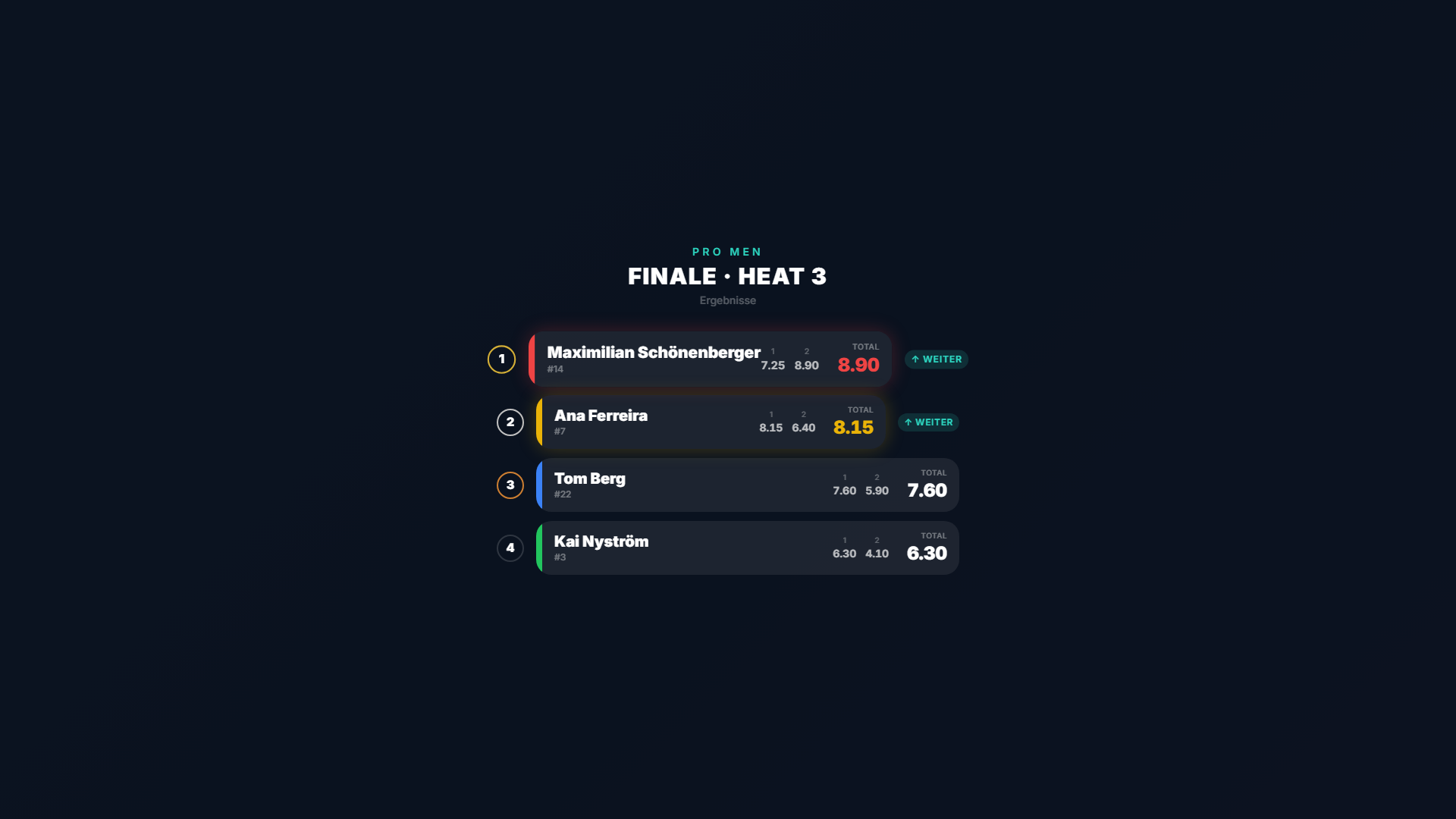
When you livestream a tournament you display overlays on top of your video: lower third (active rider), leaderboard, rider profile and the results board. These overlays are fully designable — colors, font, layout, content and your own logo — so they match your stream (not necessarily your club design). A design is assigned per tournament and can be reused across any number of contests.
There are four overlays:
| Overlay | Shows | Typical position |
|---|---|---|
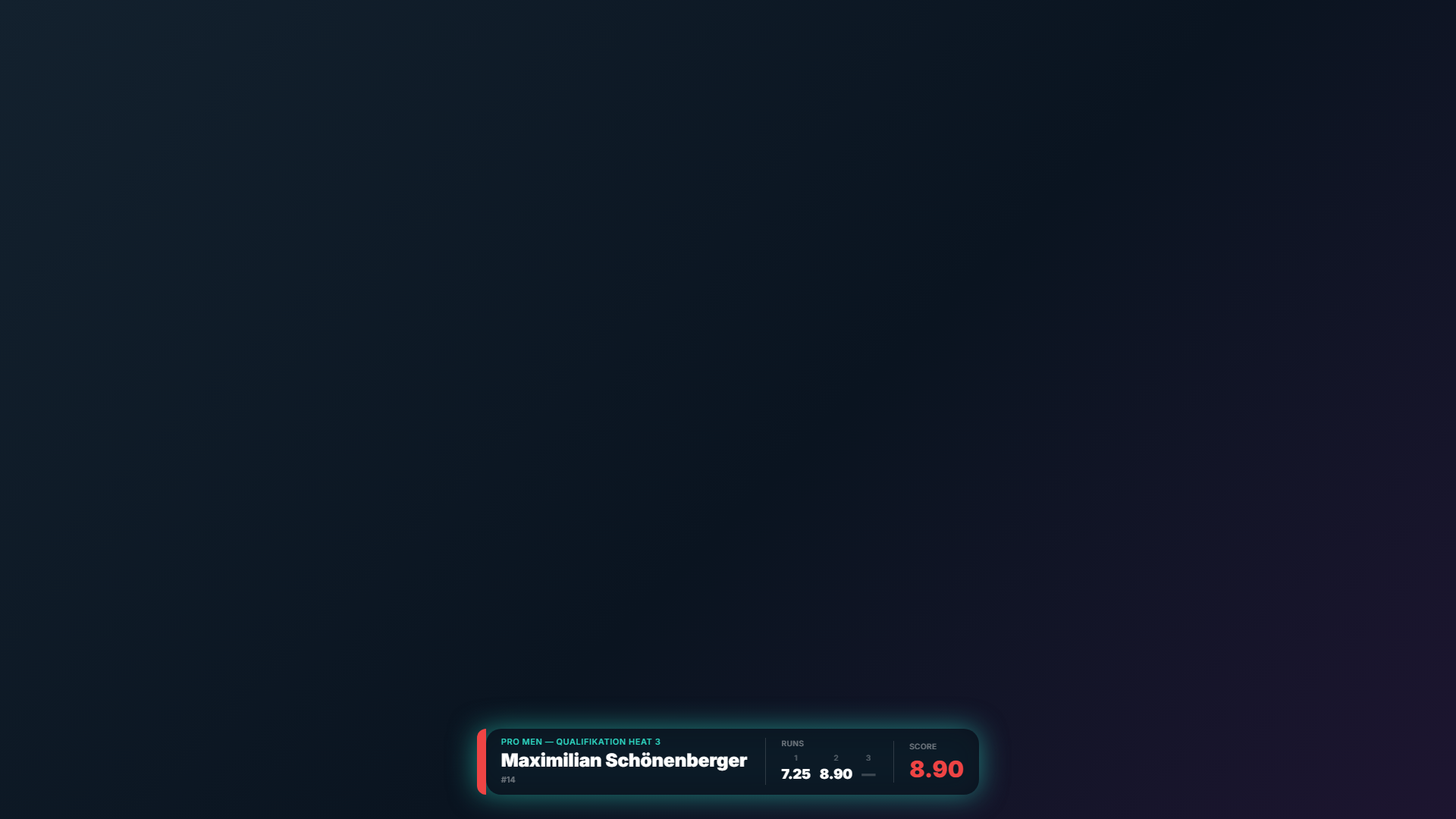
| Lower third | Active rider with name, runs and score | Bottom center |
| Leaderboard | Standings of the live heat | Top right |
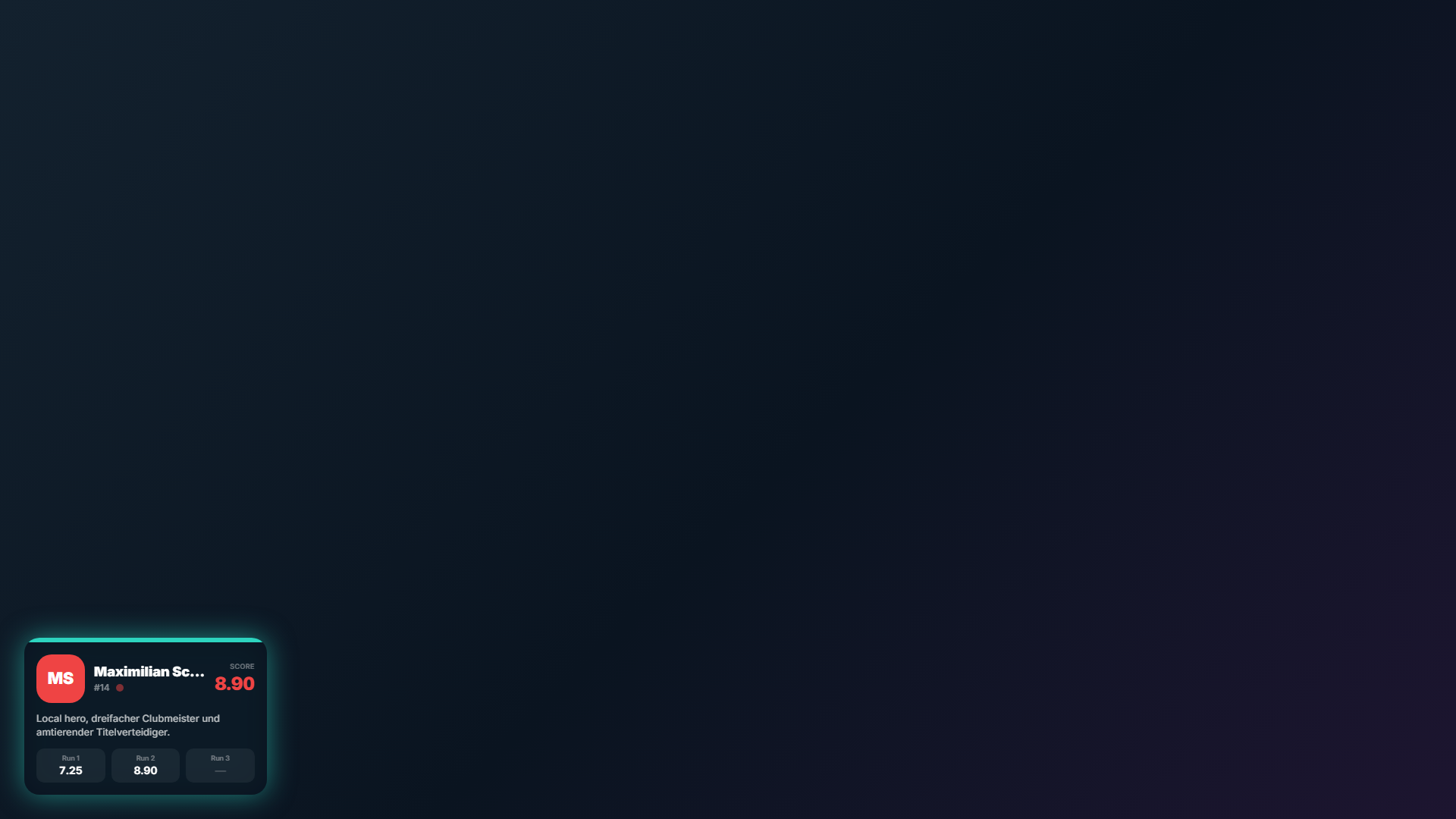
| Rider profile | Photo, bio, bib and score of the active rider | Bottom left |
| Results | Final result of a heat (fullscreen, panel or podium) | Centered |
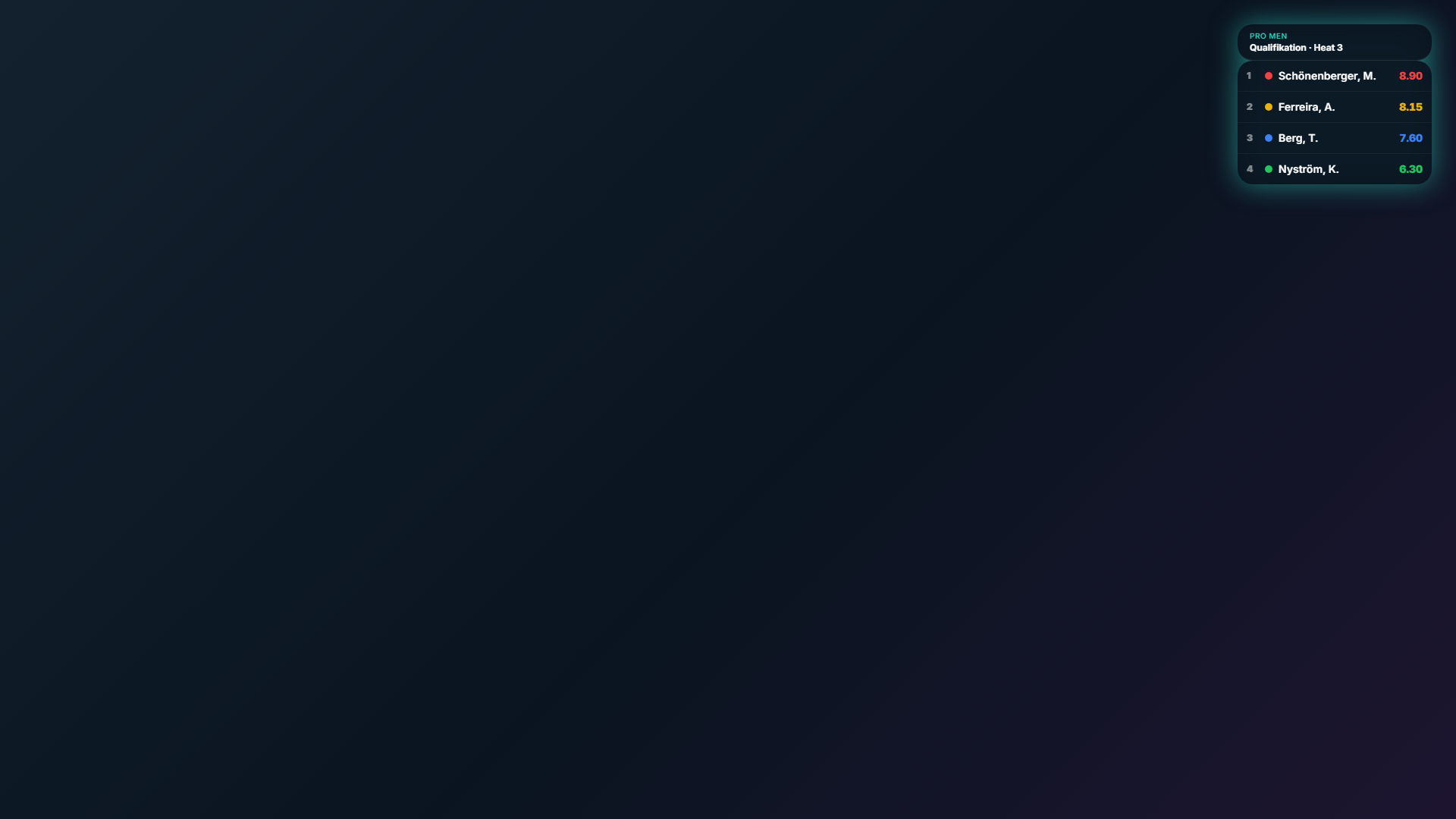
Customizing the overlay design
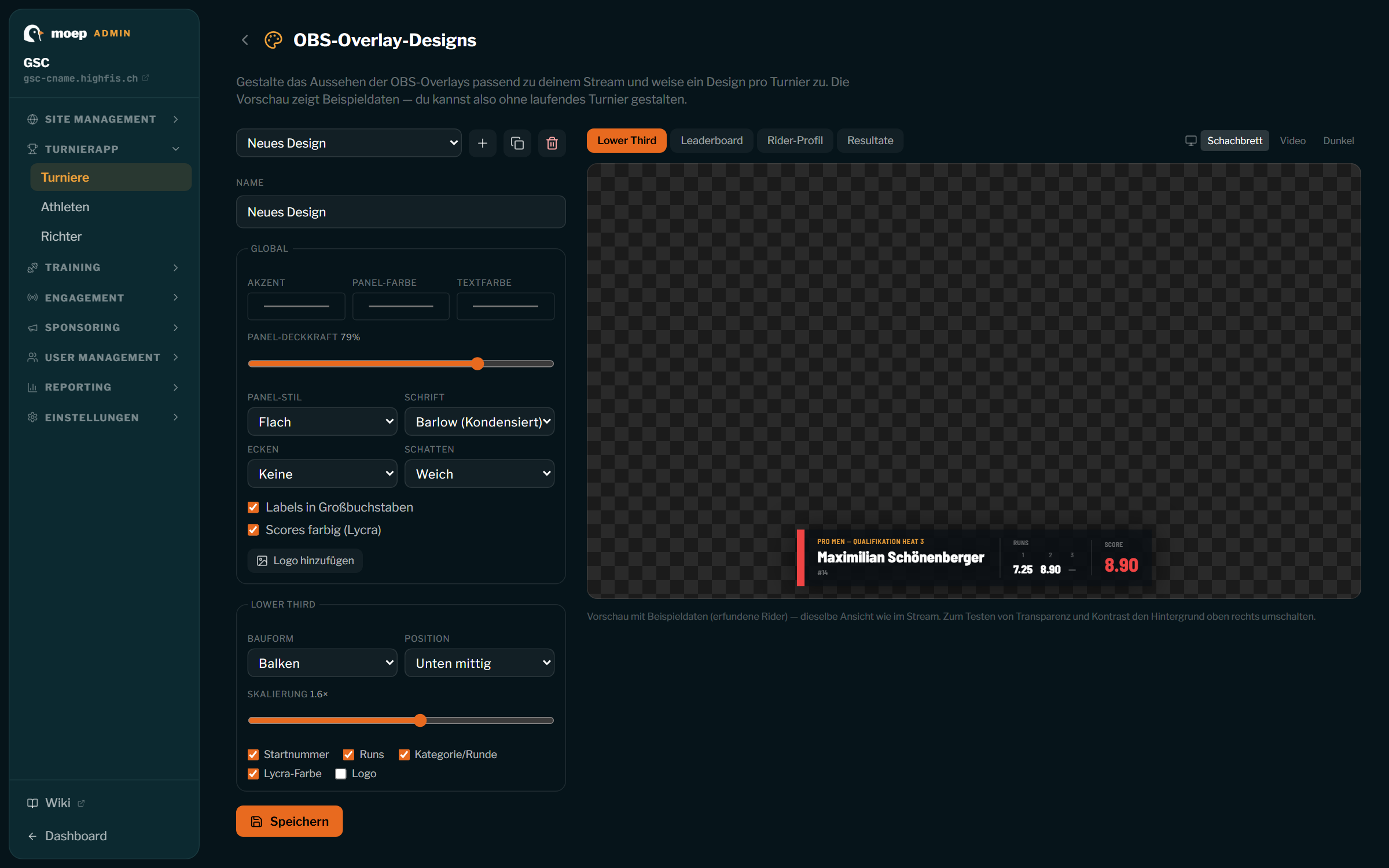
Section titled “Customizing the overlay design”In the tournament hub under Spectators & broadcast, open “Edit overlay design” (or via the menu Tournament app → Tournaments → Overlay design). You set the design on the left and see an instant preview with sample data on the right.
Create and configure a design
Section titled “Create and configure a design”- Create a new design with + at the top (or pick an existing one from the dropdown). The copy icon duplicates a design, the trash icon deletes it.
- Give it a name (e.g. “Summer series” or “Nightrun”).
- The Global block applies to all four overlays:
- Accent, panel and text color, panel opacity and panel style (solid, glass, outline, flat), corners and shadow.
- Font from a curated selection.
- Uppercase labels on/off.
- Colored scores (lycra): on = scores in the rider’s lycra color, off = in the text color (more readable when the colors feel too busy).
- Add logo: display your own logo from the media library.
- Below that you configure per overlay (the block follows the selected preview tab): layout (2–3 variants per overlay), position, scale, the max number of athletes for the leaderboard, and which content is shown (bib, runs, category, lycra color, photo, bio …). For results you also choose how advancement is shown: “↑ advance”, an arrow “↑” only, or nothing.
- Don’t forget to save — a hint appears while changes are unsaved.
Check the preview — even without a running tournament
Section titled “Check the preview — even without a running tournament”The preview on the right always shows fictional sample riders, so you can prepare the design at your leisure. The four tabs switch between overlays; top right you switch the preview background (checker = transparency, video, dark) to check readability and contrast.
Adding it in OBS
Section titled “Adding it in OBS”Each overlay is a web page with a transparent background — ideal as a browser source in OBS. No green screen required.
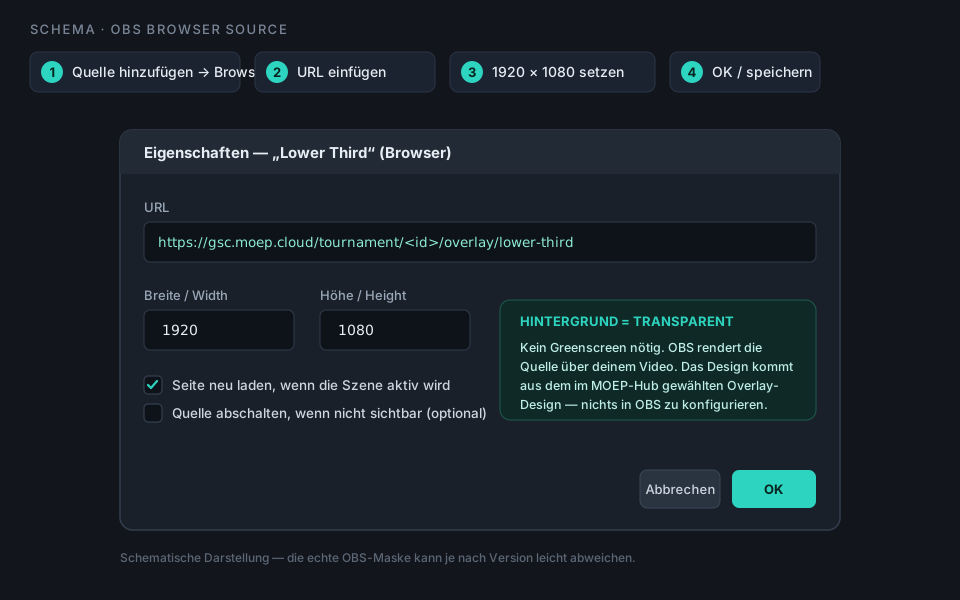
- In the tournament hub under Spectators & broadcast, copy the overlay URL with the copy icon (e.g. “OBS: Lower Third”).
- In OBS, under Sources click + → Browser, give it a name, OK.
- Paste the URL and set Width 1920 / Height 1080.
- OK. The overlay appears transparent over your scene; you can position and scale it right in OBS (but do the fine-tuning of layout/size in the design editor so all sources stay consistent).
Repeat for every overlay you want to show. The overlays update automatically once the contest is live — heat changes, new scores and results appear on their own.
Build the scene before the first heat (demo mode)
Section titled “Build the scene before the first heat (demo mode)”As long as no heat is live, an overlay source stays transparent (empty) — good for the
stream, awkward for setup. So while setting up, append ?demo=1 to the URL; the source then
shows sample data and you can calmly set position and size in OBS. In the hub each overlay URL has
a preview icon (eye) that opens the demo variant.
https://yourclub.moep.cloud/tournament/<tournament-id>/overlay/lower-third?demo=1Before going live, remove ?demo=1 again (or use the normal, copied URL) — that way sample data
never accidentally ends up on the stream.
- One design, all overlays: the selected design drives all four overlays together. Positions and layouts are set per overlay separately.
- Switch design mid-stream: if you assign a different design to the tournament, all browser sources follow on their next refresh — no need to touch anything in OBS.
- Readability: if colored scores feel too busy, turn colored scores off. The glass panel style with a soft shadow lifts the overlay nicely off the video.